Knowing what's happening on your website shouldn't require you to be logged into a dashboard all day. That's why we've added real-time notifications to Inspectlet — you can now get instantly alerted via email, Slack, or webhooks whenever something important happens on your site.
Get Notified When It Matters
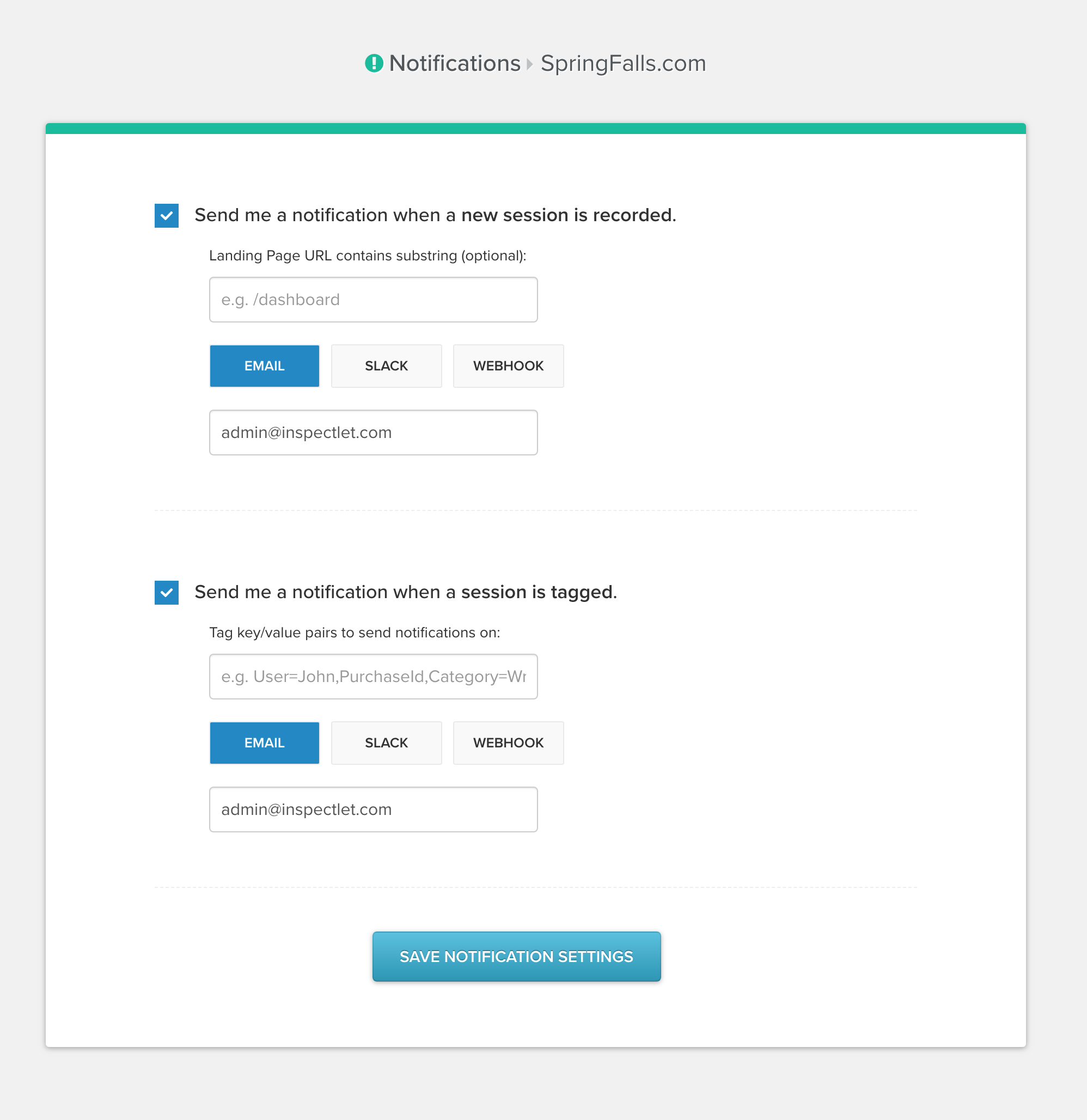
Inspectlet can now push notifications to you in real time based on three types of triggers:
- Specific actions or events — A visitor completes a purchase, submits a lead form, hits a particular page, or triggers any custom event you're tracking
- New sessions — A new session is recorded matching your criteria
- Filtered conditions — Combine triggers with filters to get notified only about the sessions you care about
Three Channels, One Setup
Get notifications delivered straight to your inbox. Great for individual alerts or low-frequency events where you want a record you can refer back to.
Slack
Push notifications directly into a Slack channel so your whole team can see them. This is especially useful for sales teams who want to know the moment a high-value prospect visits the pricing page, or for support teams monitoring for error patterns.
Webhooks
Send a POST request to any URL you specify. Webhooks open up endless possibilities for custom integrations — pipe events into your CRM, trigger internal workflows, log data to a spreadsheet, send an SMS through Twilio, or feed events into any tool your team already uses.
Practical Use Cases
Sales and lead response: Get a Slack notification the instant a visitor submits a demo request form. Your sales team can watch the session replay to understand what the prospect was interested in before reaching out — making for a much more informed first conversation.
Revenue monitoring: Receive an email every time a purchase event fires. Keep a pulse on transactions as they happen without refreshing a dashboard.
Error alerting: Pair notifications with event filters to get alerted when users hit critical error states. Catch issues before they turn into support tickets.
VIP tracking: Set up notifications for sessions that match specific criteria — like visitors from a particular company domain or users who land on your enterprise pricing page.
How to Set It Up
Head to your Dashboard and navigate to the Notifications section. From there you can create notification rules by choosing your trigger (event, action, or new session), setting any filters, and selecting your delivery channel. You can create as many notification rules as you need, each with its own triggers and channels.